Adding Custom Emotes
To use your own animation, convert the source project to Emote JSON with the Emote Converter, then install the exported files on the server. Conversion is performed locally in your browser.
Supported formats
| Source format | Files |
|---|---|
| BD Engine | .zip |
| GeckoLib | .bbmodel |
| Animated Java | .ajblueprint |
| Bedrock Edition | .json |
| Emotecraft | .emotecraft |
1. Open files
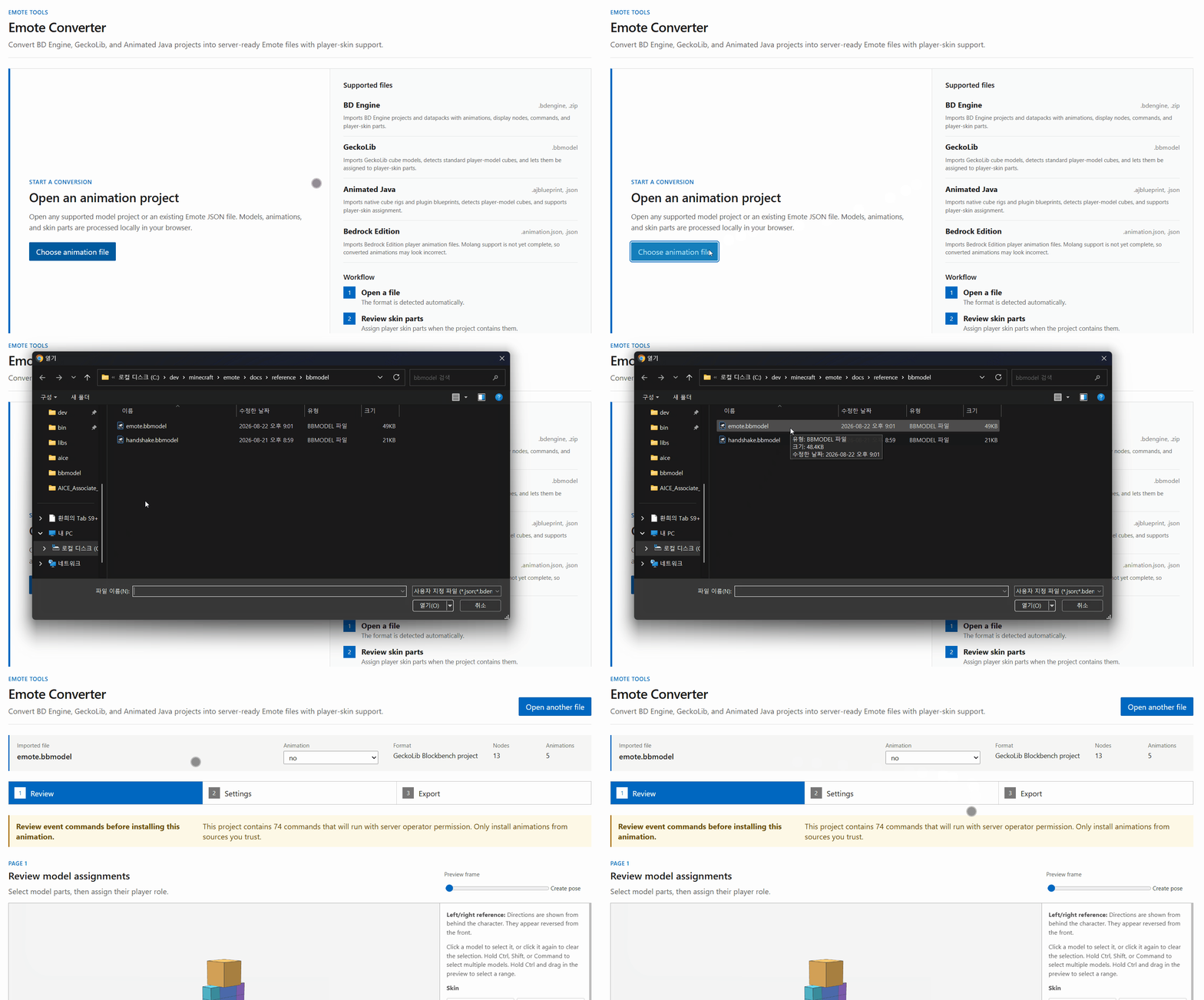
Select Choose animation files in the converter and open one or more source projects. Their formats and animations are detected automatically. If the imported files contain multiple animations, use the Animation menu at the top to select the animation you want to configure.
Use files from trusted sources
Event commands in the source file may run with server operator permission. Review any command warning shown after import, and install animations only from sources you trust.
2. Configure and export
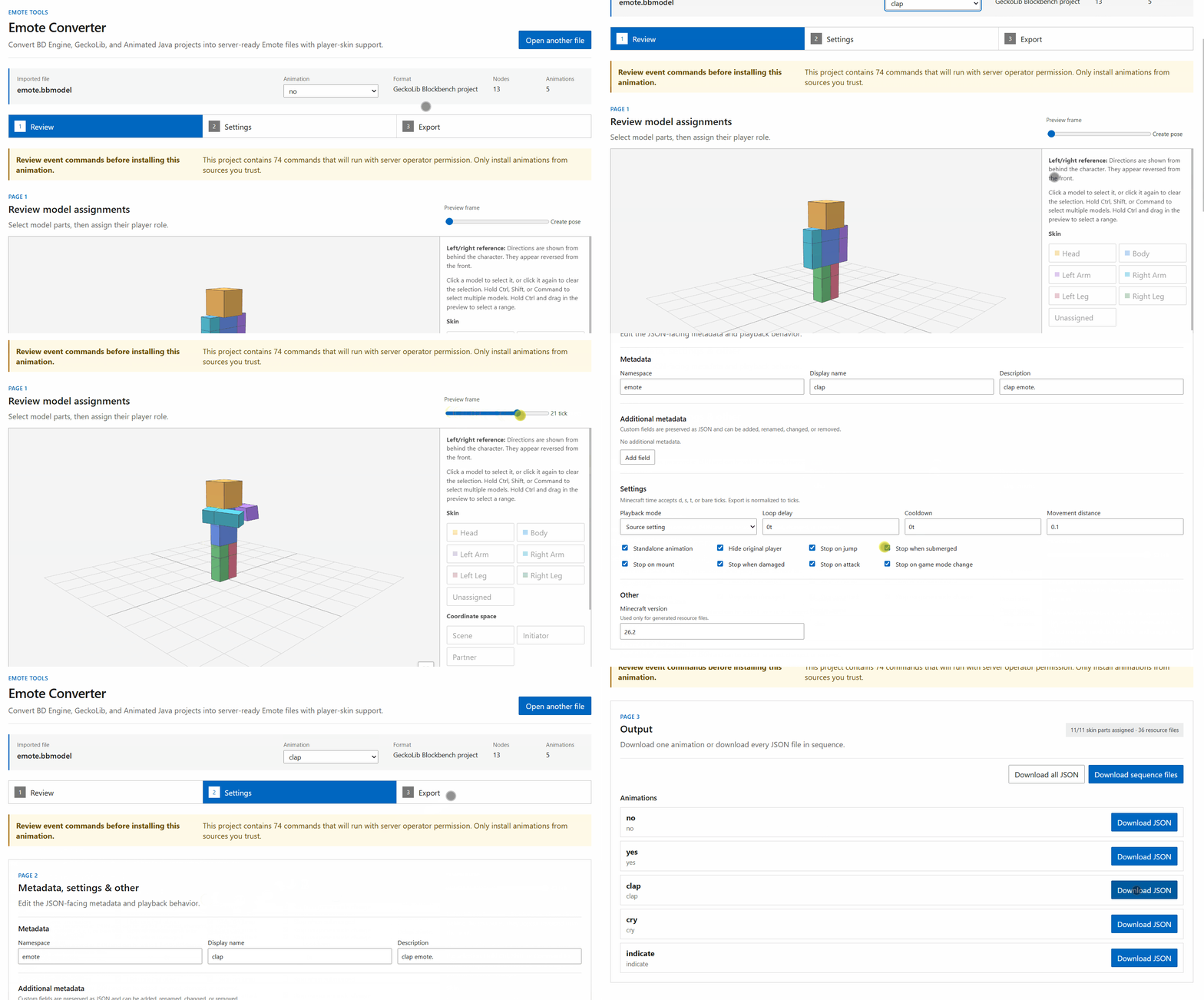
In Review, select model parts and verify their player-skin assignments. You can reassign any parts that were detected incorrectly.
The preview has limited support for Molang and does not evaluate dynamic NBT values, so it may differ from in-game playback.
In Settings, configure the ID, name, description, and playback behavior. The ID must use the namespace:path format and must not duplicate another emote on the server.
When the configuration is complete, use Export to download the Animation JSON. To connect multiple animations as one emote, download every Animation JSON together with the Sequence file.
3. Install on the server
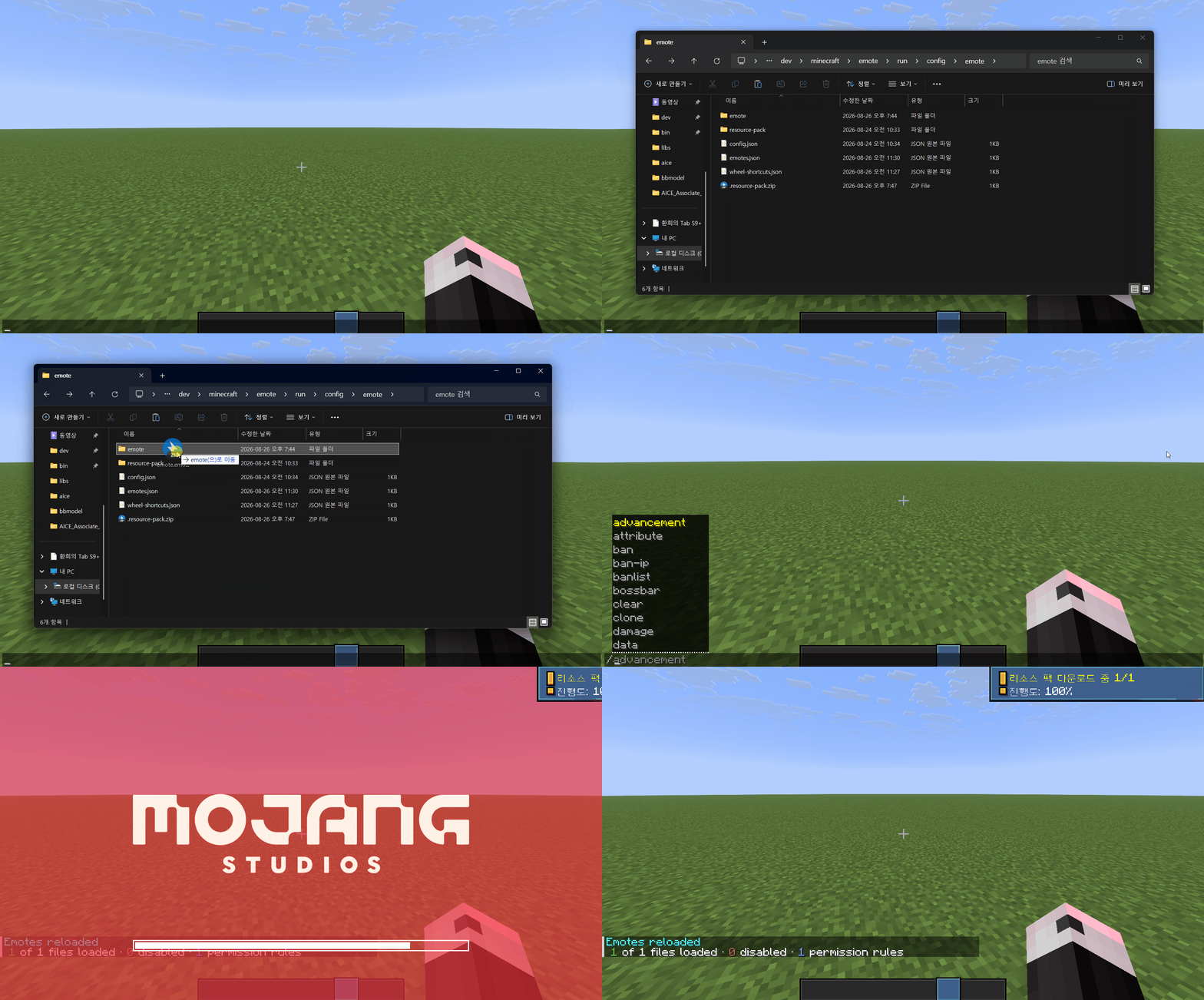
Place the exported JSON files under config/emote/emote/.
When an animation requires additional resources, the converter also downloads a *.resources.zip file. Place it under config/emote/resource-pack/; Emote adds its contents to the Polymer resource pack. Client delivery follows the shared Polymer configuration. See the Polymer documentation for configuration details.
Polymer is optional
The emotes bundled with Emote do not require a resource pack.
If none of your custom emotes use a *.resources.zip file, you can disable Polymer integration.
config/emote/
├── emote/
└── resource-pack/
Run /emote reload, then use /emote list to confirm that the emote loaded successfully. To make it available to normal players, include its ID in a permission group in emotes.json. See Access Control for details.
If the emote does not load, check the /emote reload result and the server log. Invalid JSON, duplicate IDs, and missing Animations referenced by a Sequence each prevent the affected emote from loading.